Showing posts with label PowerPoint. Show all posts

5 PowerPoint Alternatives for Making Presentations with More Fun

PowerPoint alternatives
Microsoft’s PowerPoint is almost a must-have for Windows based computers. Making PowerPoint presentations is quite a usual and common task for students and white-collar workers. But do you sometimes feel tired of using this program? If you don't have Microsoft’s PowerPoint on your computer, do you know any alternative presentation tools? Today let’s find some paid and free PowerPoint alternatives.

No.1 Keynote (Mac)
Keynote
Microsoft has launched PowerPoint 2011 for Mac, but it seems apple’s native Keynote is more popular on this platform. With strong PowerPoint compatibility, Keynote has an easy to use interface and lots of templates. That is to say, you can make good-looking presentations with Keynote’s built-in templates without spending too much time. The program has great graphic tools to edit pictures and supports video playing in the slides as well. Moreover, Keynote allows you remotely control your presentation with your iPhone or iPod touch.

No.2 Prezi
Prezi
This impressive presentation tool is very different from PowerPoint. As what it introduces itself on the official page, Prezi is a presentation tool to help you organize and share your ideas. Each presentation you create with Prezi is a flowing and motion-based depiction with your creativity, other than a traditional side-by-slide presentation. Prezi is now available for Web, Windows, Mac, Linux and iOS platforms.

No.3 Google Docs
Google Docs
Google Docs is a web-based office suite for users cloud storage, collaborative editing and file sharing on presentations and other files. The service provides lots of templates, animations, slide transitions and presentation creation tools for users, which is similar to PowerPoint. However, some features are unavailable on Google Docs, for instance, you can't embed local videos in the slides (embedding YouTube and other videos are OK). In one word, Google Docs is a free and fast online tool for making good-looking presentations.

No.4 OpenOffice/LibreOffice Impress
OpenOffice Impress
To tell you the truth, I’m not interested in the history of OpenOffice.org and the reasons why it was divided into two. As an open sourced tool, Impress supports PowerPoint presentations and provides easy-to-use interface for making new presentations. As a matter of fact, it’s the most similar tool to PowerPoint, with drawing and graphics capabilities extenuations. You can also save the presentations as SWF format in the suite.

No.5 SlideRocket
SlideRocket
SlideRocket is a high-end web-based presentation suite for cloud sharing and collaborative editing. The tool has a beautiful interface and lots of great features, like adding themes, tables, pictures, audio, video, Flash animations, etc. It allows you import files from PowerPoint and export files to PDF format. Another unique feature is the content integration of Flickr, twitter and other sources.

How to View PowerPoint on Sony Xperia ZL?

How to play PowerPoint on Xperia ZL/></a></div><span style=

Sony Xperia ZL, a high-range Android smartphone, was announced at CES 2013 in January, along with another model --- Sony Xperia Z. The Xperia ZL is a cheaper variant of Xperia Z. Both models have almost the same configurations except the ZL lacks waterproof and dust-proof features.

For specs, the Xperia ZL has a 5.0-inch full HD Reality display with 1080 x 1920 pixels and 441 ppi. A 1.5 GHz quad-core Snapdragon S4 Pro processor is equipped to help the phone run fast. What’s more, it has 2 GB of RAM, 16 GB of built-in storage and a microSD card slot. As to cameras, the handset comes up with a 13 MP rear camera witch supports 1080p HD video recording. The Xperia ZL is now available in US, India, Australia, Russia and Canada.

Highlights
Full HD Reality Display. The Xperia ZL brings 1080 progressive scan --- the highest level of HD available to users. Expertise from BRAVIA TV engineers goes into mobile screens, to bring users the same quality of a top quality HDTV.

Better battery life. Like Xperia Z, Battery STAMINA Mode is also used on the Xperia ZL. The phone knows when the screen is off and shuts down the battery-draining apps you don’t need, and then starts them up again when the screen is back on.

Playing PPT on Xperia ZL
Thanks to the combination of HD display and battery saving mode, playing 1080p videos on Xperia ZL is really an enjoyment. Besides entertainments, could the phone be used in business working? For example, how to play PowerPoint on Xperia ZL?

Showing PowerPoint on Xperia ZL perfectly is like a fancy story. We know there are some PPT apps on Google Play for your choice. With these apps installed, users can watch PowerPoint on Xperia ZL --- with all transits, animations and background music lost. After all, a mobile Office app is not as functional as Microsoft’s Office tool yet. Here comes a question: is there any other method to play PowerPoint on Xperia ZL and other smartphones with PPT elements remained? The answer is YES. Currently the most effective way is to convert PPT to Xperia ZL suitable videos. By using this PowerPoint to Xperia ZL HD video converter, users can easily change PPT files to suitable video formats and play them on their phones fluently with PowerPoint effects remained.


Related articles:


How to Play PowerPoint on Xperia Z
How to Retrieve Deleted Videos on Sony Xperia Z?


How to Remove Image Background in PowerPoint 2010

PowerPoint users, if you want to insert an image into a slide without background, what would you do to handle this? Using Pen Tool to remove the background? No. In PowerPoint 2010, there's a more simple tool to remove image background. Let's take a look.

For example, inserting the following Easter themed picture into the PowerPoint.
Easter PowerPoint background

Step 1 Open or create a document in PowerPoint 2010. Click Insert and select Picture in the toolbar.
Insert picture

Step 2 Click the picture, then choose Picture Tool -> Format -> Remove Background.
Remove background

Step 3 Under Background Removal tab, click Mark Areas to Keep button to indicate which part of the picture you don't want to remove automatically.
Mark areas to keep

Step 4 Click Keep Changes to confirm and close. Done.
Finish

Get Your PowerPoint to Work on Your iPhone 5

I know you may find getting PPT to work on iPhone 5 is hard to believe, but it is true. As an entertainment-enabled phone, iPhone 5 allows you to listen to music,play games and watch videos or movies. However, hardly anyone knows that you can also play PPT on iPhone 5. All that you should do is to convert the PPT to video by Moyea PPT to Video Converter. Now I will show you how to operate this software in details:
First, I would like to show you the considerate User Interface of the converter. The latest version of the PowerPoint to video program features a new multilingual interface, covering 8 dominant languages – English, French, German, Italian, Japanese, Portuguese, Simplified and Traditional Chinese. It is really a pleasant plus to the existing UI of simplicity, for users can obtain a quicker access to their PowerPoint-to-video conversion by choosing a familiar language with the help of "Languages" button.
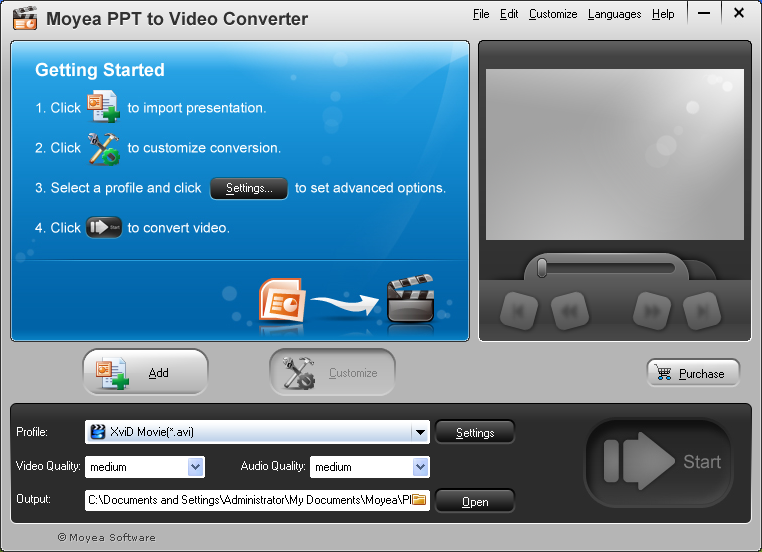


  • Import PPT
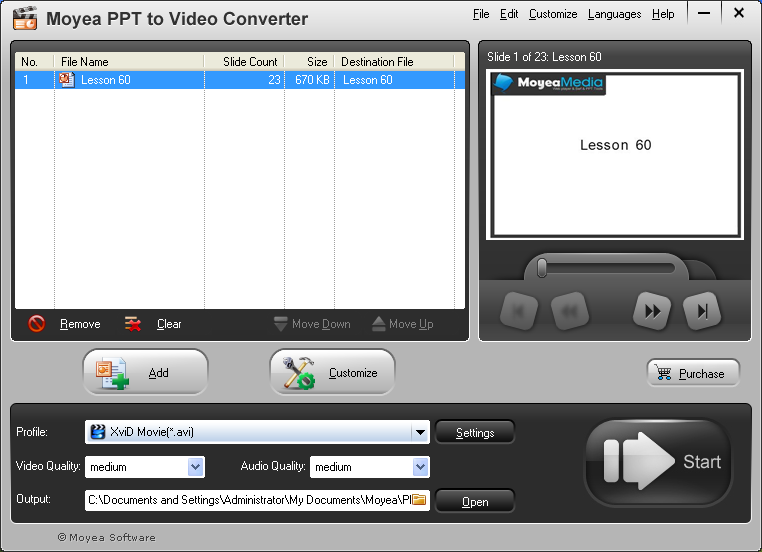
  • Click the “Add” button to import a PPT and soon you will see the following picture. If you want to clear the PPT, you just right click and choose the “Clear” option.
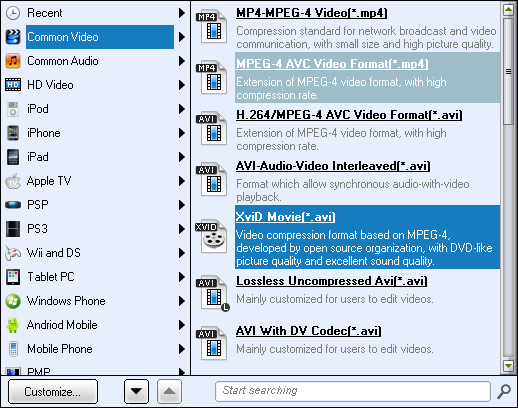
  • Choose output format
  • Click “profile” combo box to choose an output format. Here one thing to note is that the output format of the video should be supported by iPhone 5, for example, H.264, M4V, MOV, MPEG-4, AVI. Here you can also choose Video Quality and Audio Quality.
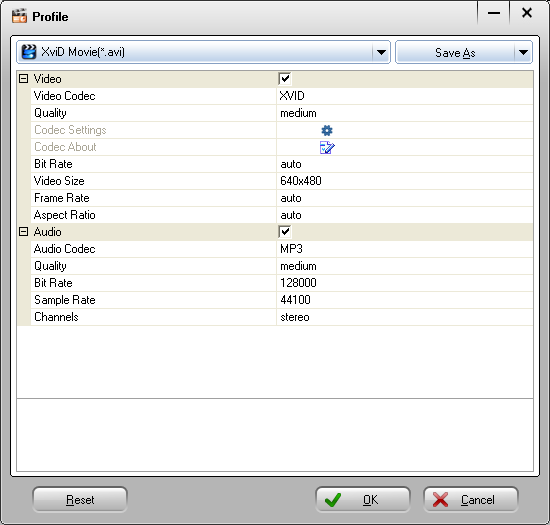
  • Set output resolution (video size)
  • Click the Settings button to set video size. Make sure the output resolution is supported by iPhone 5.
  • Start conversion
Once all the parameters have been set, click the Start button to Start conversion.After conversion you will see the following picture and you can enjoy your “PPT” on your iPhone 5.
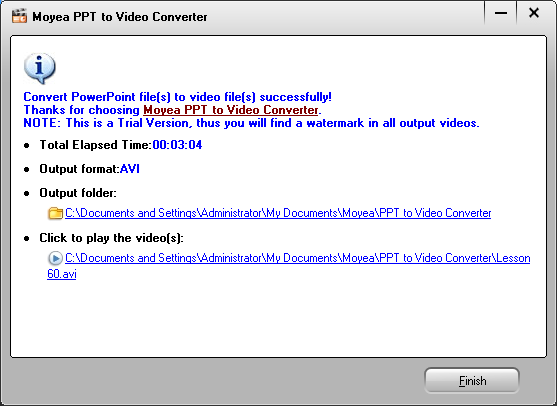


Look, with the help of Moyea PPT to Video, it is so easy for you to get your PPT to work on your iPhone 5.It is not that unimaginable! Actually you should just click several buttons. Besides, Moyea PPT to Video is an all-in-one PowerPoint to video converter enables you to convert PPT to videos of any popular format with all the PPT elements such as transitions, animation, sound effects intact. That is to say with Moyea PPT to Video you can get your PPT to work not only on iPhone 5 but also on many other multimedia devices.

BY wallpaperhdi.blogspot.com